
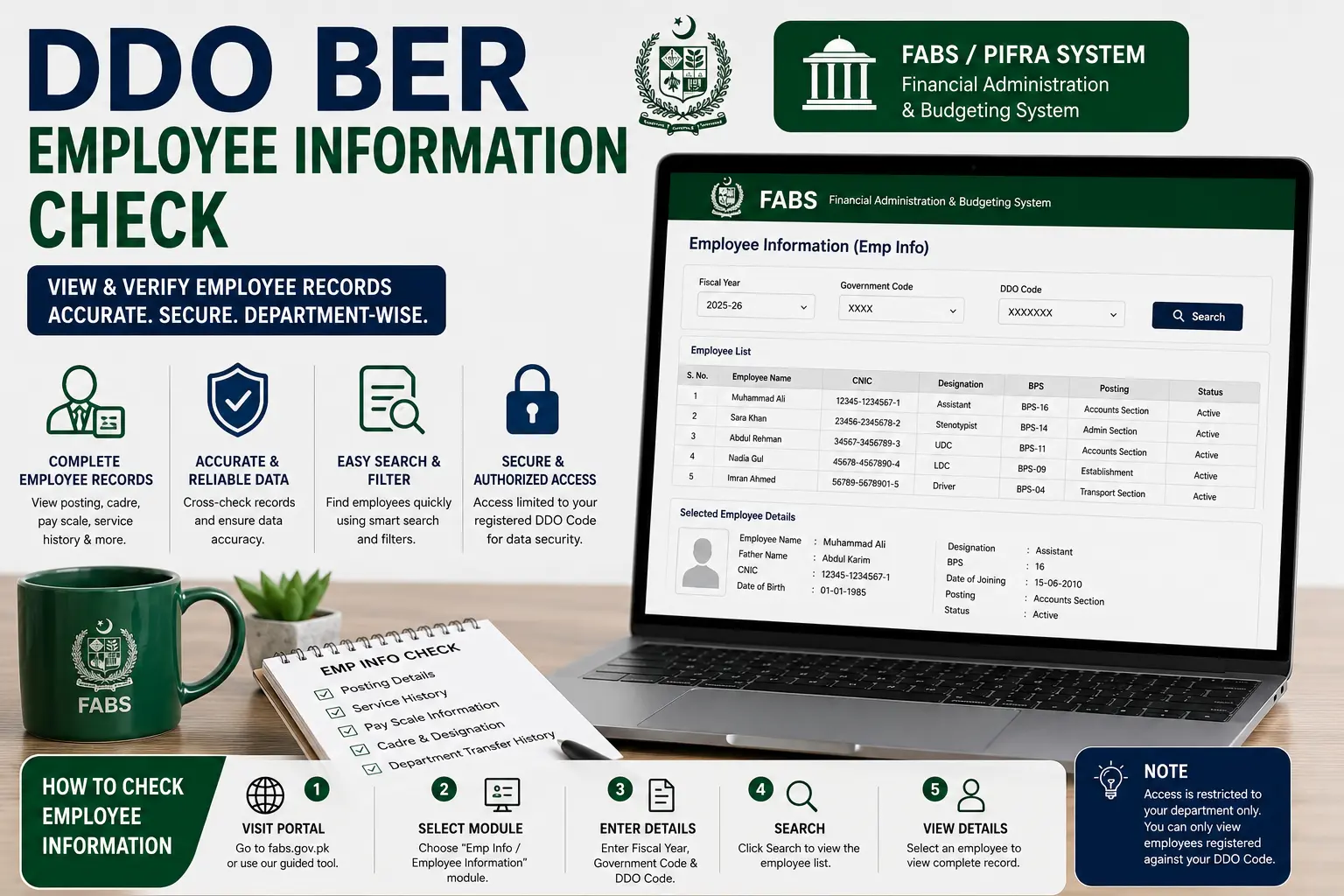
A DDO BER Employee Information Check — often just called “Emp Info” on the portal — lets a government department pull up the service records of employees registered against its DDO Code.
It’s used for everything from confirming posting details during a transfer to cross-checking records ahead of an audit. This guide covers how to run the check, what data it actually shows, how it’s organized by department, and what to do if it won’t load.
DDO BER Employee Information Check on PIFRA
The Emp Info module works the same way as most other DDO BER functions — it’s tied to your Government Code and DDO Code rather than a separate login:
- Go to the FABS/PIFRA portal (fabs.gov.pk) or use the guided tool on our homepage.
- Select the Emp Info / Employee Information module.
- Enter your Fiscal Year, Government Code, and DDO Code.
- Search, and a list of employees registered against that DDO Code will load.
- Select an individual record if you need to view full details for a specific employee rather than the department-wide list.
Since employee records are tied directly to a department’s DDO Code, someone outside that department generally won’t be able to pull up records that don’t belong to their own office — access is scoped to your registered code.
What Information Is Included in Emp Info
A typical Emp Info record includes:
- Basic identification details — name, designation, and employee reference number as recorded in the system.
- Posting information — which office or department the employee is currently posted to, and their position code.
- Service status — whether the record is currently active or flagged for a pending transfer, retirement, or other change.
- Pay scale/grade — the employee’s basic pay scale, which ties into salary and budget calculations covered elsewhere in the DDO BER system.
It’s worth noting that Emp Info is a records reference, not a live HR management tool — updates to an employee’s status (a transfer, promotion, or retirement) typically get reflected here only.
After the formal paperwork has been processed through the relevant accounts or establishment office, there can be a lag between an actual change and it appearing on the portal.
Employee Info by Department
Since every department has its own DDO Code, employee records are naturally segmented by department rather than searchable across the entire government at once. A few practical implications of this:
- If your department covers multiple offices under one DDO Code, all of those offices’ employees will appear together in a single Emp Info search — useful for a broader departmental review, but worth filtering carefully if you only need one specific office’s staff.
- Larger departments with district-level DDO Codes (for example, a provincial health or education department with separate district offices) will need to check each district’s DDO Code individually to get a complete picture across the whole province.
- If you’re trying to cross-reference an employee who’s recently transferred between departments, you may need to check both the old and new DDO Codes, since the record typically moves with the formal transfer order rather than updating instantly.
Troubleshooting Emp Info Not Loading
A few common reasons the Emp Info module fails to return results, in order of how often they actually turn out to be the cause:
- Wrong Government Code or DDO Code — the most common issue by far; double-check that both are entered exactly as issued.
- Fiscal Year mismatch — some historical employee data may not be retained or searchable under older fiscal years.
- Server timeout or slow load — like other FABS/PIFRA modules, this can be slow at peak times; wait a few minutes and retry before assuming it’s broken.
- Record genuinely not yet updated — if you’re looking for a very recently joined or transferred employee, the record may simply not have been processed into the system yet.
- Browser compatibility — some older government portal pages render inconsistently on certain browsers; trying a different browser can sometimes resolve a page that appears blank or partially loaded.
If none of these resolve the issue and you’re confident the employee should be in the system, the most reliable next step is confirming directly with your department’s accounts or establishment office, since they can check the underlying record independently of the public-facing portal.
FAQs
How do I check DDO BER Employee Information for my department?
Use your Government Code and DDO Code on the FABS portal’s Emp Info module — no separate login is required.
Can I search for an employee outside my own department?
Generally no — Emp Info access is scoped to your department’s registered DDO Code.
Why is a recently transferred employee not showing up yet?
Records typically update only after the formal transfer paperwork has been processed, which can take some time after the actual move.
Does Emp Info show salary details directly?
It shows pay scale/grade information, but detailed salary figures are more fully covered under the Salary Slip module rather than Emp Info itself.
What should I do if Emp Info won’t load at all?
Double-check your Fiscal Year, Government Code, and DDO Code first, then retry after a few minutes — if it still fails, confirm with your accounts office.
Conclusion
The DDO BER Employee Information Check is a straightforward but genuinely useful function once you understand how it’s structured — records tied to your DDO Code, organized by department, and reflecting formal status changes rather than real-time updates.
Whether you’re confirming a posting, checking a pay scale, or preparing records for an audit, knowing what to expect from Emp Info (and how to troubleshoot it when it doesn’t load) saves a lot of back-and-forth with the accounts office.
As with the rest of the DDO BER system, running this check periodically rather than only when a specific question comes up keeps your department’s records easier to verify when it actually matters.