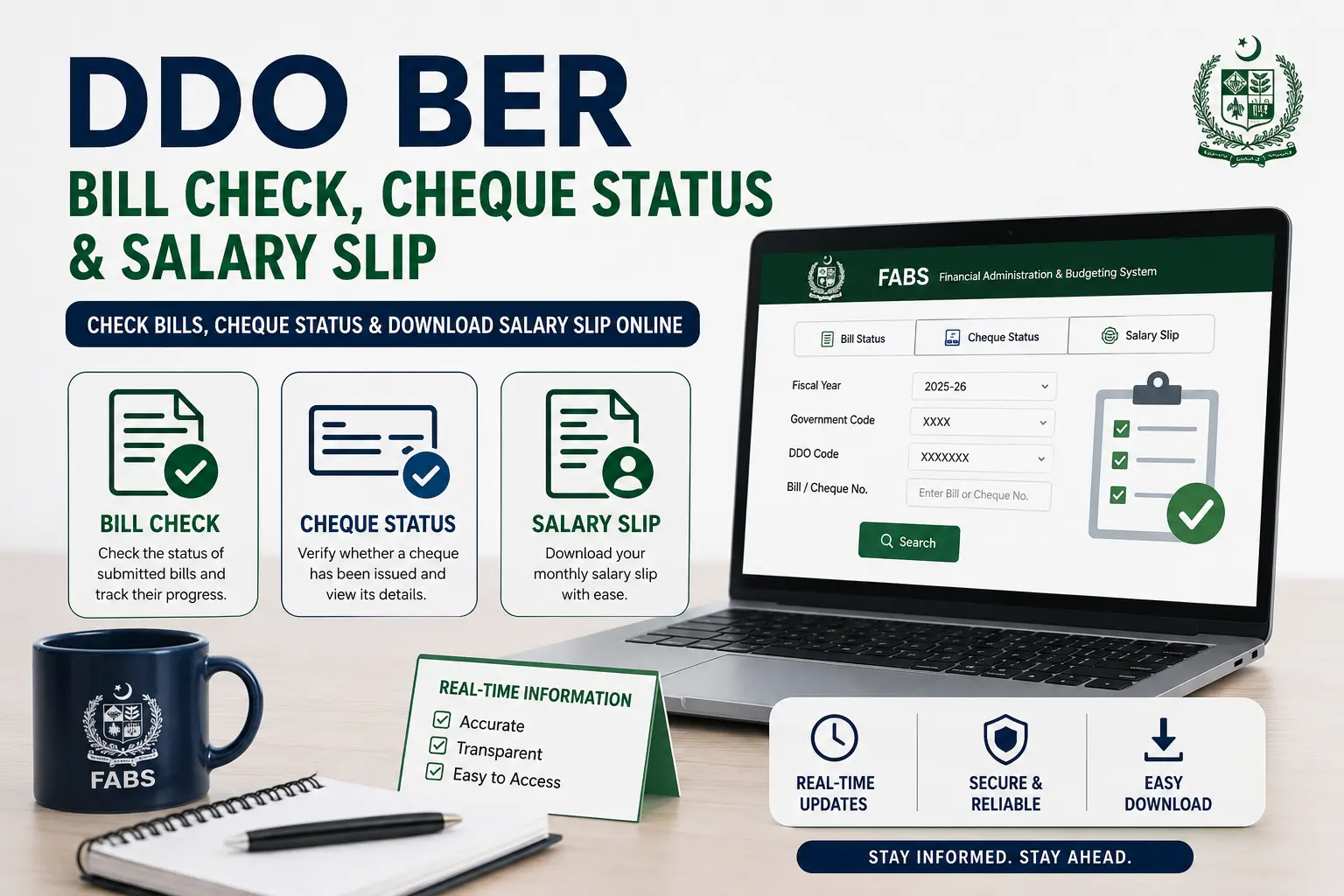
DDO BER Bill Check, Cheque Status & Salary Slip lookups are some of the most frequently used functions on the FABS portal — they tell you whether a submitted bill has been processed, whether a cheque has been issued, and let individual employees download their monthly pay slip directly.
This guide walks through all three, step by step, and covers the most common issues people run into along the way.
How to Do a DDO BER Bill Check, Cheque Status & Salary Slip Lookup
Each of these three checks uses the same core details — your Government Code and DDO Code — but pulls up a different report on the FABS portal:
- Go to the official portal — fabs.gov.pk — or use the guided tool on our homepage.
- Select the relevant module — Bill Status, Cheque Status, or Salary Slip- depending on what you need.
- Enter your Fiscal Year, Government Code, and DDO Code.
- Enter the specific bill or cheque number if checking an individual transaction rather than a full department list.
- Click Search to view the result.
If you’re checking your own salary slip rather than a departmental bill, you’ll typically need your individual employee reference in addition to your DDO Code — check with your accounts office if you’re unsure of yours.
DDO BER Bill Check, Cheque Status & Salary Slip via FABS vs. Legacy PIFRA Links
Older m.pifra.gov.pk Links for salary slips and bill tracking still appear in search results and are still used by some sites, but they can be inconsistent.
Where possible, run your check directly through fabs.gov.pk, since it’s the actively maintained system — if a legacy link fails to load, the FABS equivalent is usually the more reliable route.
DDO BER Cheque Status Check
Once a bill has been processed, a cheque is generated for payment. The Cheque Status check tells you:
- Whether a cheque has been issued against a specific bill.
- The cheque number and issue date are useful for cross-referencing with your department’s own payment records.
- Whether a cheque is still pending processing, which is common in the first few days after a bill is submitted.
If a cheque status shows as pending for longer than expected, it’s worth checking with your DDO or accounts office directly rather than assuming it’s lost — processing delays are common, especially around month-end.
How to Download Your Salary/Pay Slip
For individual government employees, the Salary Slip module is the most commonly used function on the entire portal:
- Select the Salary Slip / “Online Salary Slip” option on the portal.
- Enter your DDO Code, Fiscal Year, and the month you want to check.
- Enter your individual employee details as required (this varies slightly by department).
- Your slip will display with a full breakdown of basic pay, allowances, and deductions — download or print it directly from the browser.
Keep in mind that a new month’s salary slip is typically only available once that month’s payroll has been fully processed, so checking too early in the month may show no data yet.
Bill Payment Process Explained
Understanding the general flow helps make sense of why a bill check might show a particular status:
- Bill submission — the department submits a bill for a specific expenditure.
- Verification — the bill is checked against the available released budget for that head of account.
- Processing — once verified, the bill moves toward payment authorization.
- Cheque issuance — a cheque is generated and issued for the approved amount.
- Payment completion — the cheque status updates to reflect the completed transaction.
A bill can be delayed at any of these stages — most commonly at verification, if the released budget for that head of account is insufficient to cover it.
Common Bill Check Errors & Fixes
- “No record found” usually means an incorrect bill/cheque number, wrong Fiscal Year, or the transaction hasn’t been fully processed yet.
- Salary slip not showing for the current month — payroll for the current month often isn’t available until it’s fully processed; try the previous month to confirm your details are correct, then recheck later.
- Cheque status stuck on “pending” — normal for the first few days after submission; if it persists beyond 2-3 weeks, follow up with your accounts office.
- Portal not loading at all — try fabs.gov.pk directly rather than an older PIFRA link, and retry after a few minutes since government servers can be slow at peak times.
Frequently Asked Questions
How do I check DDO BER Bill Check, Cheque Status & Salary Slip in one place?
All three are accessed through the FABS portal (or the tool on our homepage) using your Government Code and DDO Code — each has its own module, but the login details are the same.
Why is my salary slip not available yet?
Payroll for the current month is usually only available once fully processed — try again in a few days, or check the previous month to confirm your access is working correctly.
How long does a cheque take after a bill is submitted?
This varies by department and budget availability, but a few days to a couple of weeks is typical; longer delays are worth following up on directly.
Can I download my salary slip as a PDF?
Most portals let you print or export the slip directly from the browser, which you can then save as a PDF.
What do I do if my bill check shows “no record found”?
Double-check the bill number, Fiscal Year, and DDO Code entered — this error is most often caused by a mismatched detail rather than a missing bill.