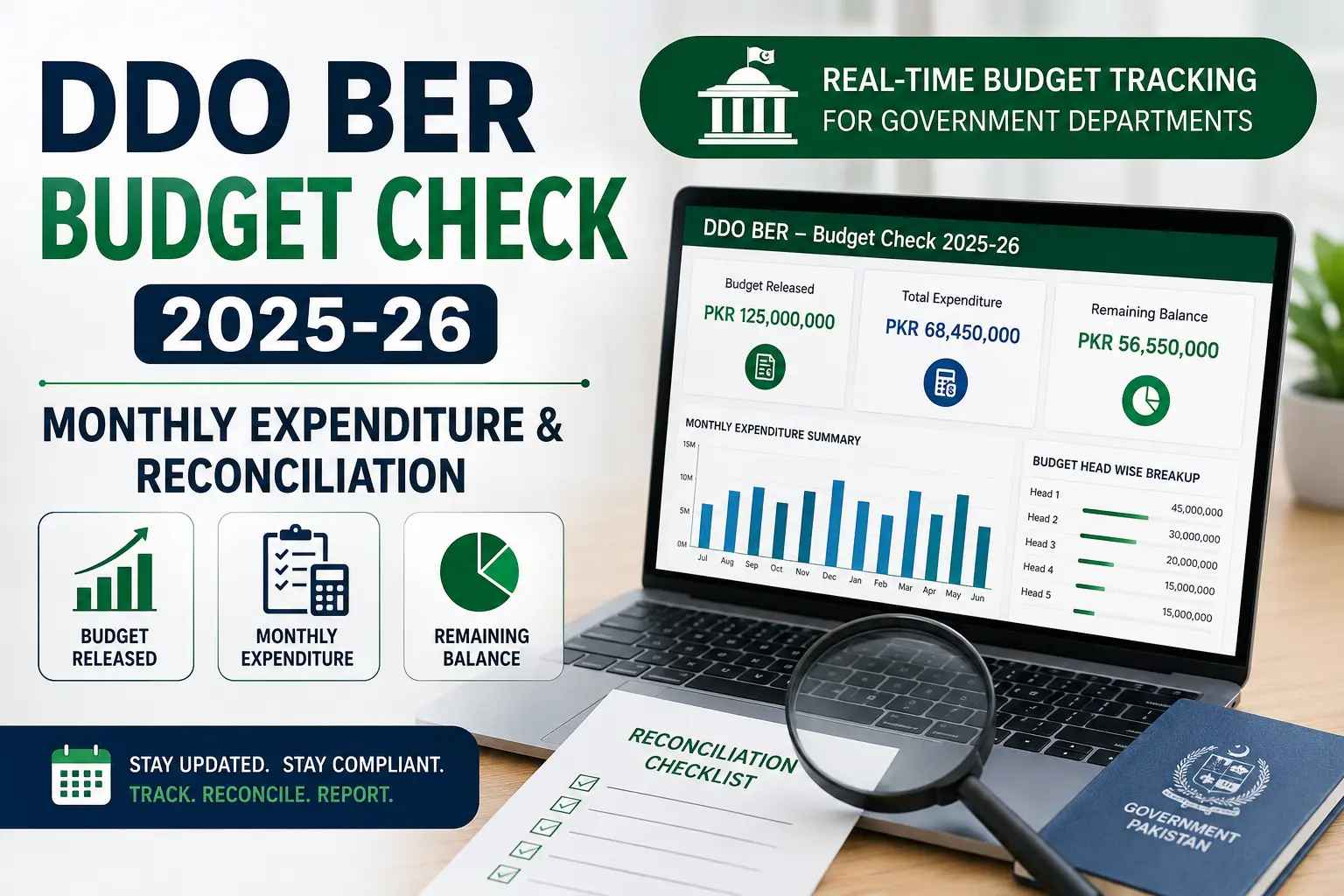
A DDO BER Budget Check is how government departments in Pakistan track their released budget, monthly spending, and remaining balance for the current fiscal year — all in real time, without waiting for a manual report from the accounts office.
If you’re a Drawing and Disbursing Officer or accounts staff member trying to check your department’s 2025-26 budget position, this guide walks through exactly how to run the check, what the figures mean, and how to reconcile them before your next reporting deadline.
How to Do a DDO BER Budget Check Online
Running a DDO BER Budget Check takes less than a minute once you have your details ready. Here’s the process:
- Go to the official FABS portal — fabs.gov.pk — or use the guided tool on our homepage.
- Select the Fiscal Year you want to check (currently 2025-26, running July 2025 to June 2026).
- Enter your Government Code (Federal, Punjab, Sindh, KPK, etc. — full list on our homepage).
- Enter your DDO Code exactly as issued.
- Click Search. Your budget table loads, showing expenditure, released budget, and balance figures broken down by budget head.
- Switch views if needed — most dashboards offer a “Standard View” and an “Export” option for pulling the data into Excel.
If the portal doesn’t load on the first try, wait a few minutes and retry — government servers can be slow, especially near month-end closing.
DDO BER Budget Check via the FABS Portal vs. Legacy PIFRA Links
You may come across older m.pifra.gov.pk Links still circulating in search results and on other websites.
These can still work for some report types, but fabs.gov.pk is the actively maintained system — if a PIFRA link fails to load, running your DDO BER Budget Check on FABS directly is generally more reliable.
DDO BER Budget 2025-26 (Current Fiscal Year)
Pakistan’s government fiscal year runs from July to June, so “2025-26” covers July 2025 through June 2026. A few things to keep in mind when checking the current year’s budget:
- Original Budget figures are set at the start of the fiscal year (July) and reflect the initial allocation before any revisions.
- Released Budget is updated periodically throughout the year as the finance department authorizes portions of the total allocation for spending — departments rarely have their entire annual budget released on day one.
- Figures update as transactions are processed, so checking early in the fiscal year will naturally show lower expenditure than checking in Q3 or Q4.
If you need to compare against a previous year — for example, reviewing 2022-23 budget figures for an audit or year-over-year comparison — the same portal lets you select prior fiscal years from the same Fiscal Year dropdown, provided the historical data has been retained in the system.
How to View Monthly Expenditure Reports
Beyond the overall budget summary, the DDO BER dashboard breaks spending down month by month, which is useful for spotting spending patterns or catching an unusual transaction early rather than at year-end.
- Monthly figures typically appear as separate columns or a filterable view within the same report.
- June figures are often shown separately (sometimes labeled distinctly, such as JUN_AMOUNT) since June is the final month of the fiscal year and tends to see a spending push before closing.
- If a specific month’s expenditure looks unusually low or missing, it’s often because that month’s transactions haven’t been fully processed and posted yet — worth rechecking a few days later rather than assuming an error.
DDO BER Budget Reconciliation Process
Reconciliation means matching your department’s own spending records against what the DDO BER system shows — and catching any mismatch before it becomes a bigger problem at audit time. A practical approach:
- Pull your DDO BER Budget Check report for the period you’re reconciling (monthly or quarterly is more manageable than waiting for year-end).
- Compare the Released Budget and Expenditure figures against your department’s internal spending records or cashbook.
- Flag discrepancies immediately — a mismatch is far easier to trace and correct within the same month than months later.
- Pay close attention to the Final Budget Balance near year-end — this is the figure auditors will focus on, since it reflects your department’s true unspent position after all revisions.
- Keep an exported copy of each reconciliation check for your own records, since portal data can shift as transactions continue to post.
Regular reconciliation — monthly rather than only at year-end — is the single biggest factor in avoiding last-minute scrambles during the June closing period.
How to Download Budget Report (PDF)
Most DDO BER dashboards include an Export option (usually to Excel rather than a direct PDF), letting you save the current view for offline records or reporting. If you specifically need a PDF version for official submission:
- Export to Excel first, then convert to PDF using any standard spreadsheet application if your office requires a PDF format specifically.
- Keep exported files clearly labeled with the fiscal year, DDO code, and export date — reports pulled at different points in the month can show different figures as new transactions post.
Understanding the Budget Dashboard
The dashboard view can look dense at first glance, but it’s built around a few core figures worth understanding clearly:
- Original Budget — what was allocated at the start of the fiscal year.
- Released Budget — what’s actually been authorized for spending so far.
- Released Budget Balance — how much of the released amount is still unspent.
- Final Budget — the adjusted total after any in-year revisions or supplementary grants.
- Final Budget Balance — your true remaining balance against the revised total — the number that matters most for planning and reconciliation.
A department that checks this dashboard monthly, rather than treating it as a once-a-year formality, catches budget issues while there’s still time to act on them.
FAQs
How do I run a DDO BER Budget Check for 2025-26?
Go to fabs.gov.pk (or use the tool on our homepage), select Fiscal Year 2025-26, enter your Government Code and DDO Code, and click Search.
Why does my DDO BER Budget Check show no data?
Usually an incorrect Fiscal Year or Government Code selection, or a mistyped DDO Code — double-check all three before assuming the system is down.
Can I check previous years, like 2022-23, on the same portal?
Yes, as long as historical data has been retained, you can select prior fiscal years from the same Fiscal Year dropdown.
Is there a direct PDF download for the budget report?
Most dashboards export to Excel rather than a direct PDF — convert from Excel if your office requires a PDF specifically.
How often should I reconcile my DDO BER budget?
Monthly reconciliation is strongly recommended over waiting until year-end, since discrepancies are far easier to correct closer to when they occur.
What does the MPG figure relate to on some dashboards?
MPG typically refers to the Monthly Progressive figure — a running total of expenditure accumulated month over month through the fiscal year, rather than a single month’s isolated spending.